# Кнопки
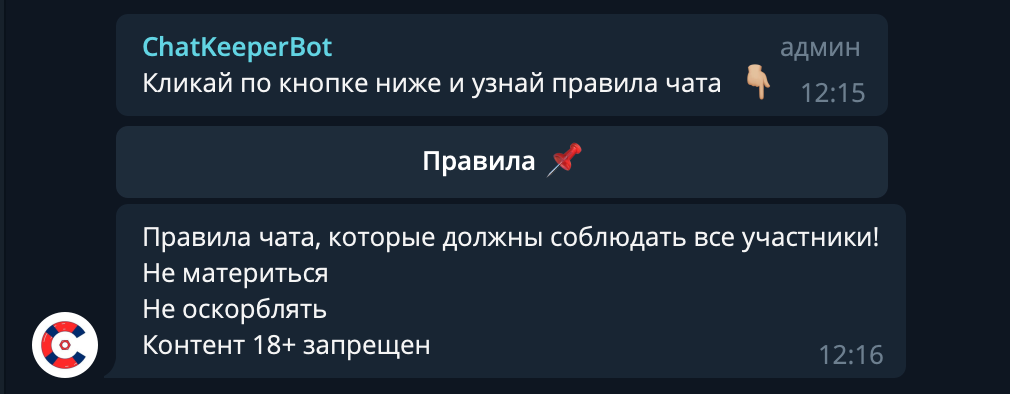
Кнопки – это удобный инструмент, для взаимодействия с пользователем. Кнопки устанавливаются в текстовом редакторе под полем ввода сообщения.
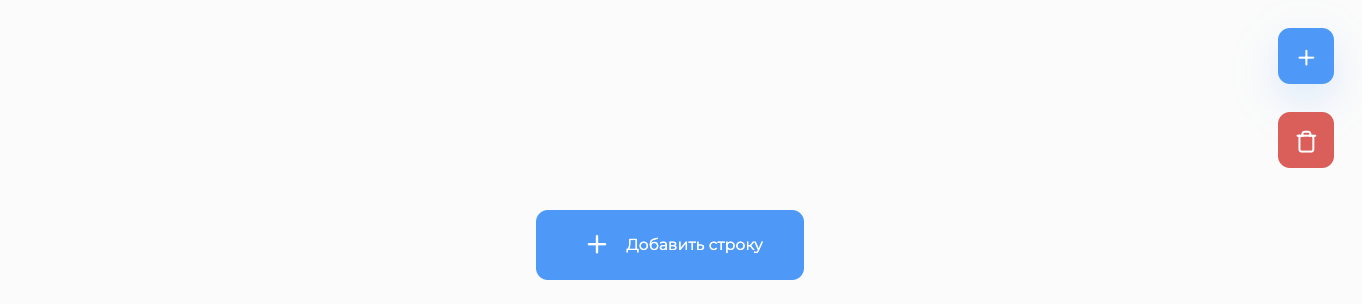
Чтобы добавить кнопку нужно сначала создать строку нажав на «+ Добавить строку». Каждая строка — это отдельная группа кнопок. Затем, надо нажать на кнопку «+» и выбрать нужный тип кнопки в контекстном меню. После этого кнопка добавится в ваш редактор. Настроить кнопку можно нажав на шестеренку.
Важно
Максимальное количество строк – 10, а кнопок в строке – 8.
# Разновидности кнопок:
# Ссылка.
Эта кнопка нужна для того, чтобы пользователь мог перейти по ссылке, которую можно задать в настройках кнопки.
Пример настройки:
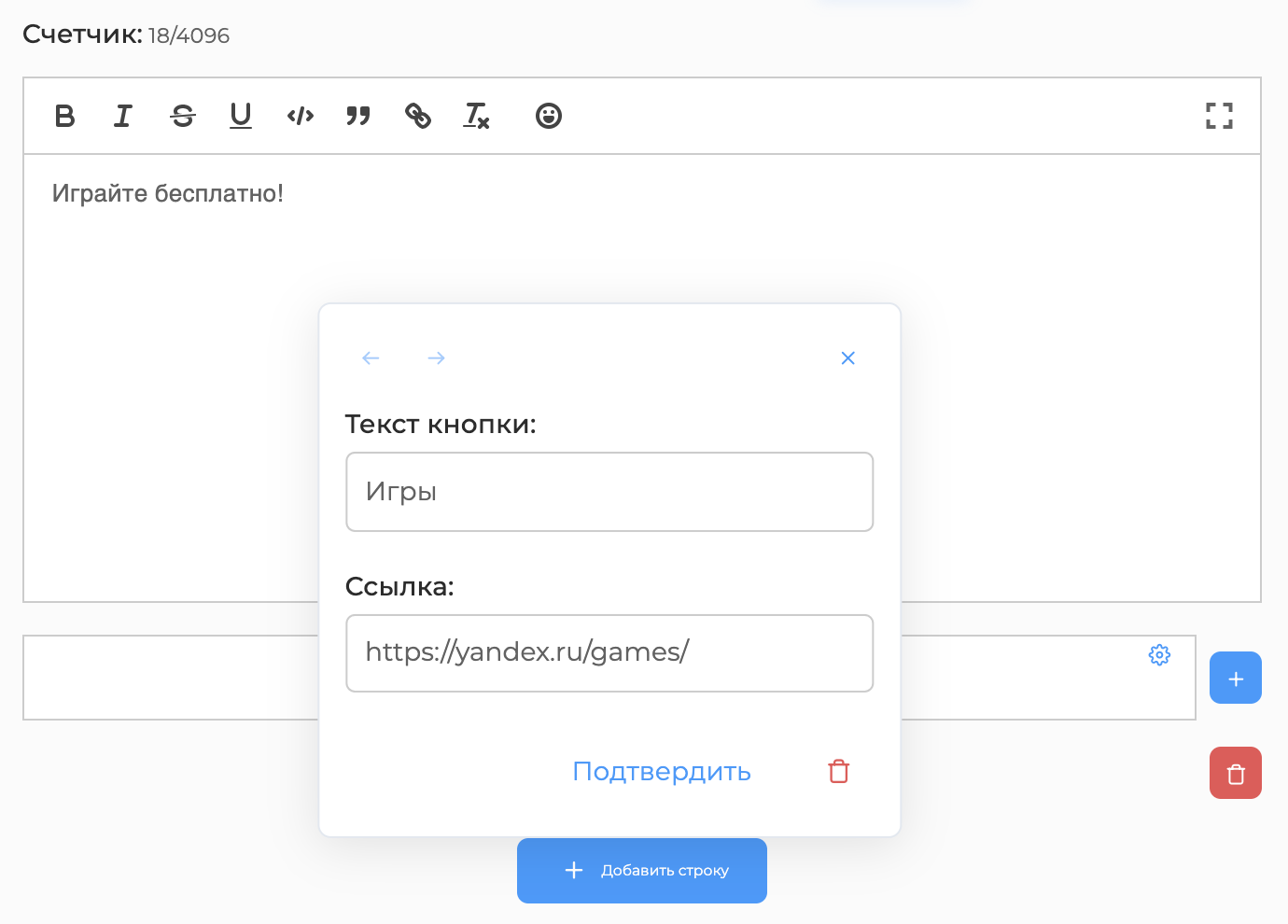
В чате это будет выглядеть так:

# Реакция.
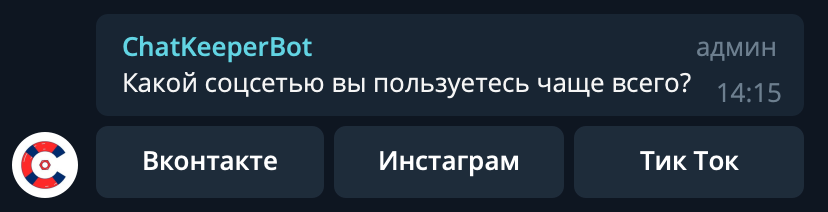
Эта кнопка нужная для того, чтобы пользователь отреагировал на ваш пост.
Настройка кнопки состоит из:
- Названия реакции (смайл, предложение, слово)
- Сообщение для пользователя, которое придет после нажатия на кнопку
- Две дополнительные функции:
- Только уникальные – считаться будет количество уникальных кликов, то есть если вы нажали на кнопку несколько раз, то все равно будет засчитан один клик.
- Выбор нескольких вариантов – можно выбрать несколько вариантов реакции.
- Только уникальные – считаться будет количество уникальных кликов, то есть если вы нажали на кнопку несколько раз, то все равно будет засчитан один клик.
Пример настройки:
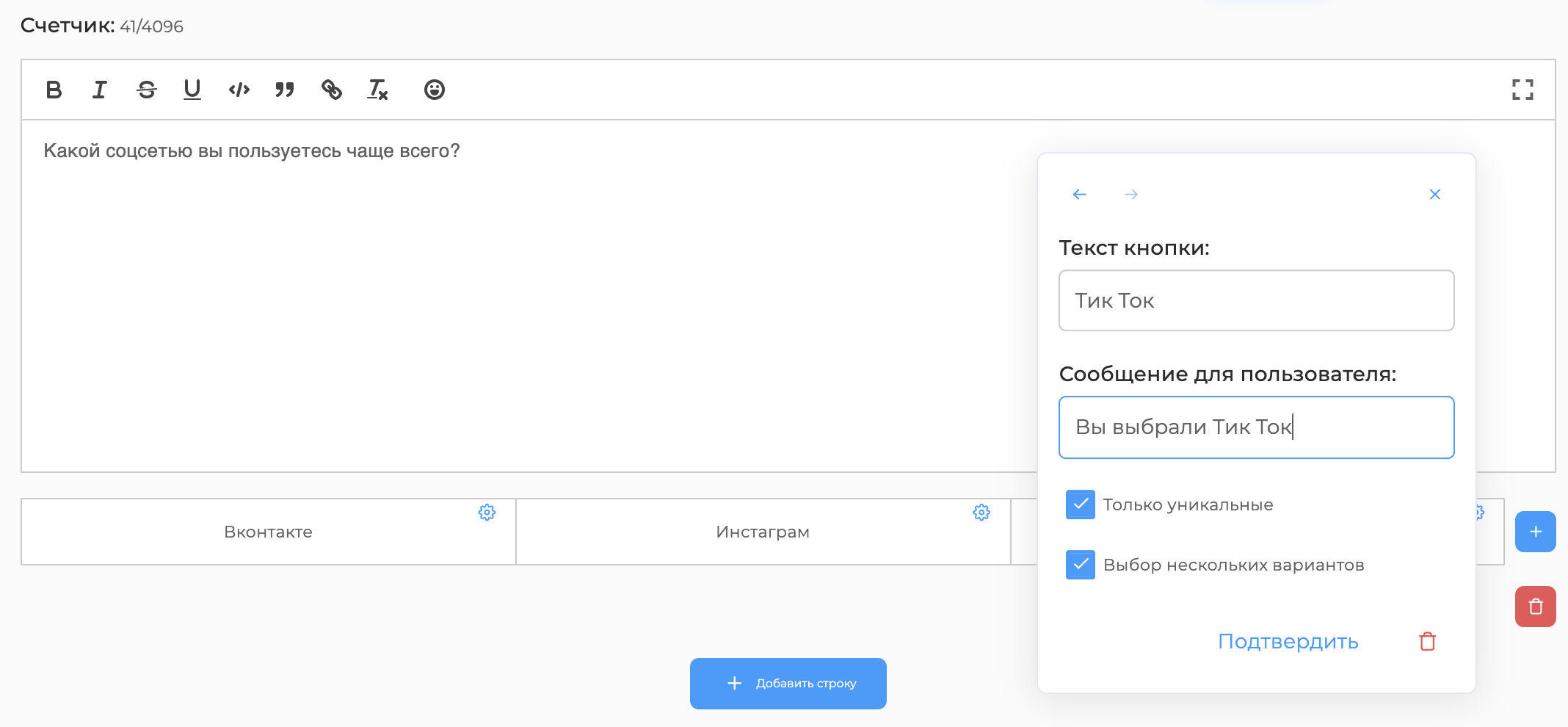
В чате это будет выглядеть так:
# Поделиться.
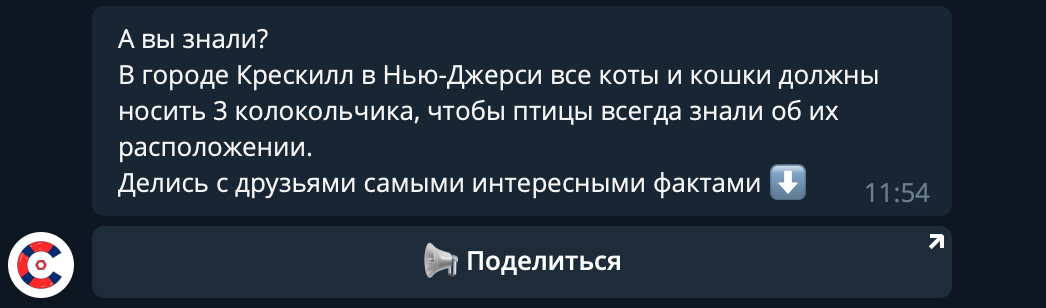
С помощью этой кнопки пользователь может в пару кликов поделиться постом.
Пример:
# Вызов триггера.
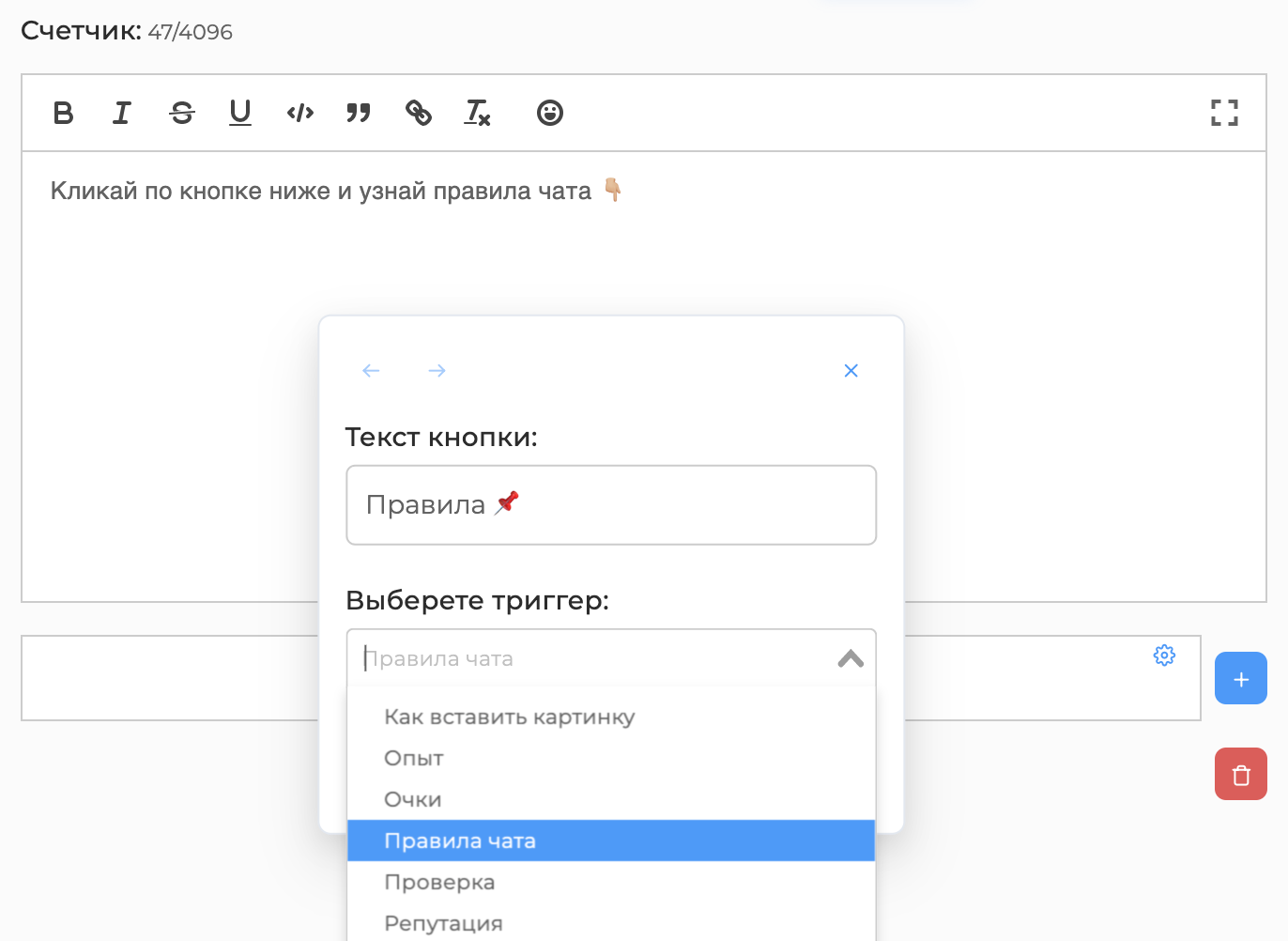
Кнопка, с помощью которой пользователь может вызвать триггер.
Пример настройки:
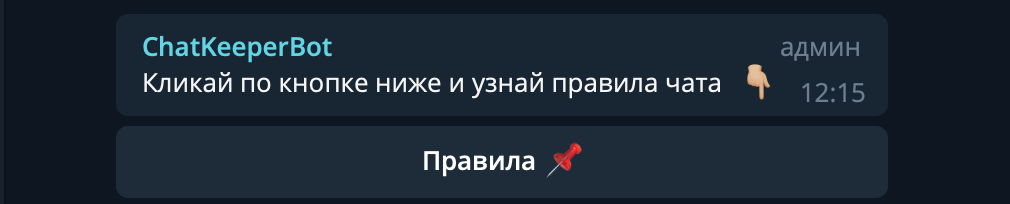
Как это будет выглядеть в чате:
При нажатии на кнопку придет сообщение триггера: